Published records
Published records are finalized records made available in the repository. Once a record is published, it becomes accessible to other users.
Note
A published record is not necessarily a public record. Publishing a record means the record is no longer a draft (a temporary working version) but a finalized record registered in the system. Whether the record is publicly accessible depends on its restriction settings.
A published record contains finalized metadata and associated files. It also displays additional information such as:
- usage statistics
- versions
- communities
- citation details
Your records
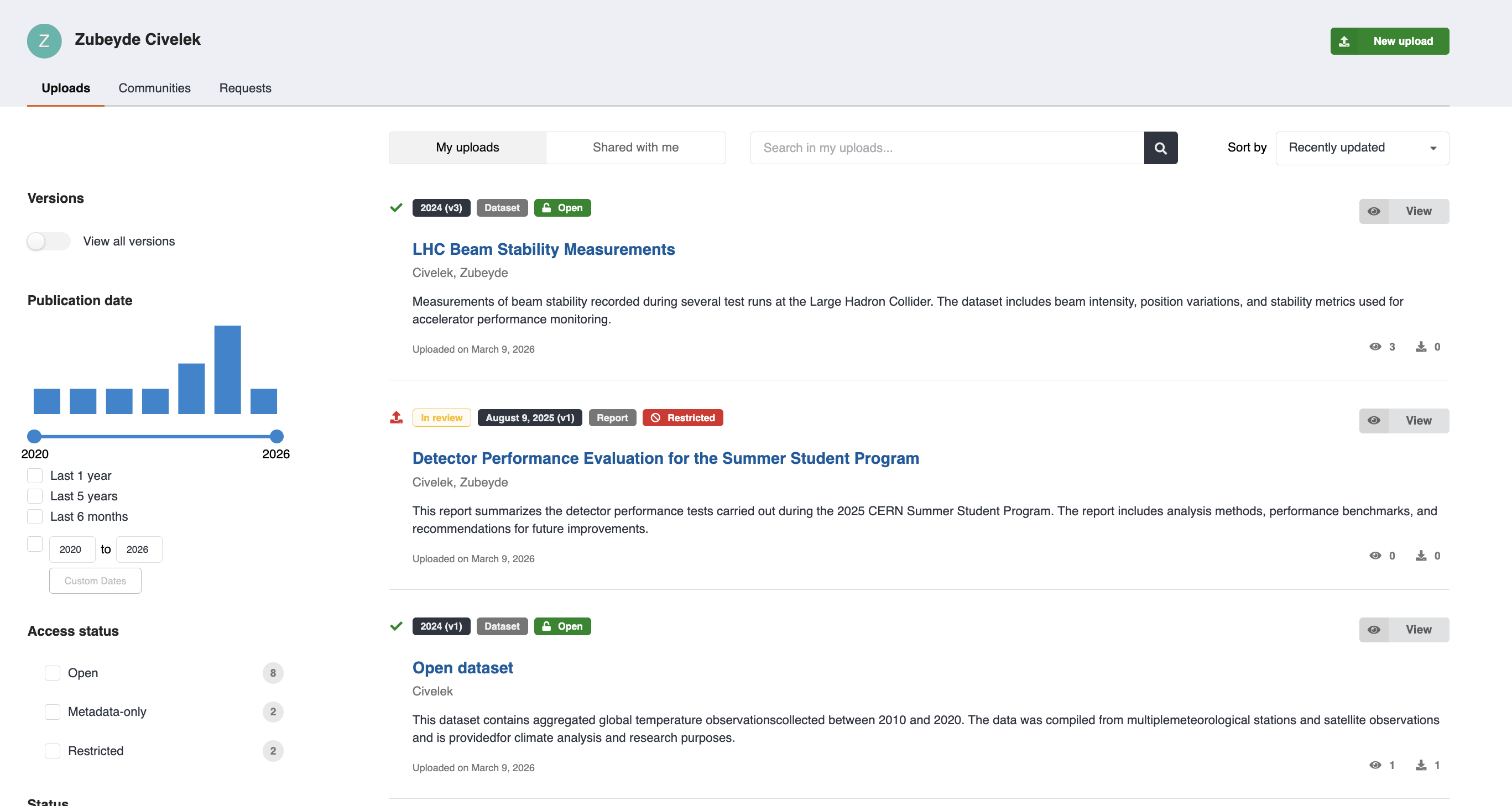
To see all your records, go to My Dashboard.

The My Dashboard page shows all records you have created or contributed to, including published records and drafts.
From this page you can:
- view your published records
- access and continue editing draft records
- monitor the status of your uploads
- search and filter your records
- create new uploads
Each record entry displays key information such as the title, status ('open' or 'restricted'), and the last update date.
Published records are indicated by a green checkmark, while draft records are shown with a red upload icon.
Records shared with you
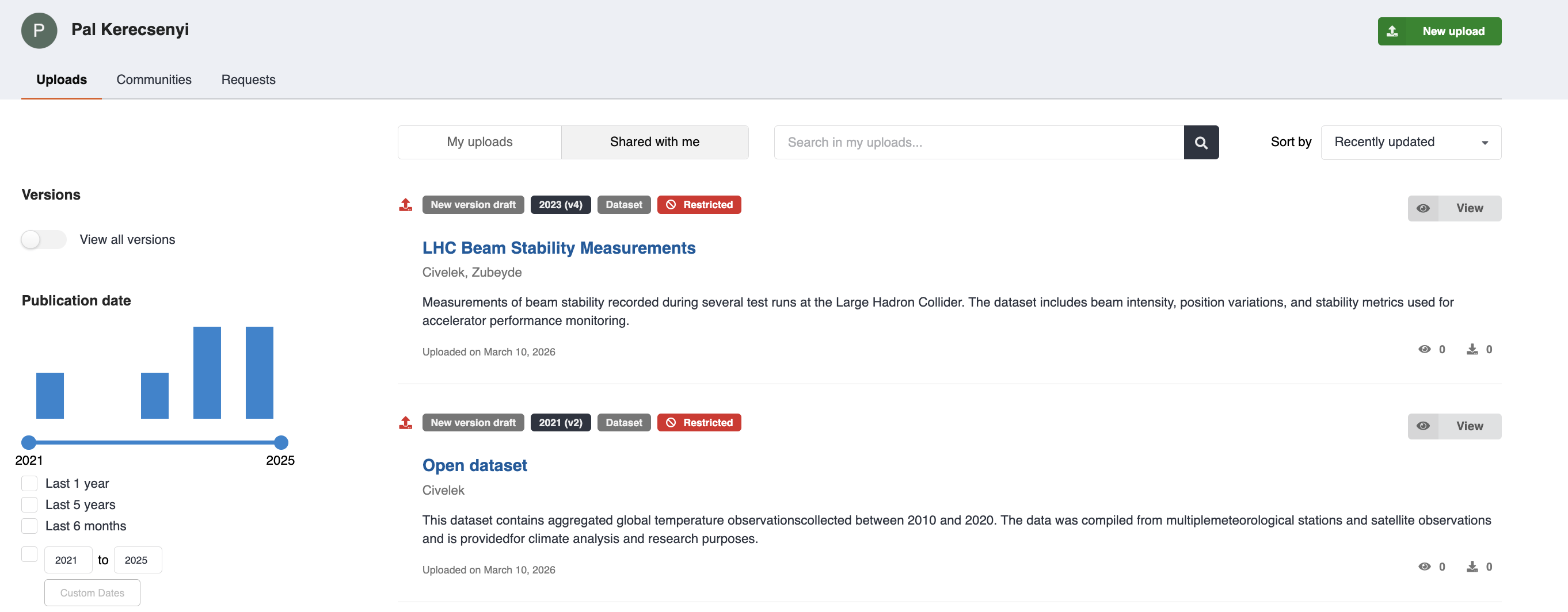
Records can be shared with you by other users, allowing you to view or collaborate on them.
To access these records, go to My Dashboard > Uploads and select the Shared with me tab.
Shared records may allow different levels of access depending on the permissions granted to you by the record owner.
Edit
Draft records can be edited at any time before they are published.
To edit a draft:
- Open the draft from My Dashboard > Uploads.
- Update the metadata or files as needed.
- Save your changes.
For published records, only the metadata can be edited.
To edit metadata of a published record:
- Open the published record you want to modify.
- Click Edit.
- Update the metadata.
- Save and publish the changes.

If you need to modify or replace files, you must create a new version of the record.
New version
To modify the files of a published record, create a new version.
To create a new version:
- Open the published record.
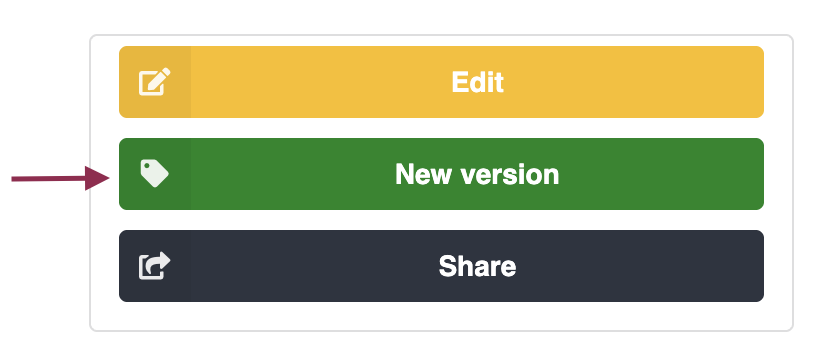
- Click New version.
- A draft copy of the record is created.
- Update the metadata or files as needed.
- Publish the draft to release the new version.
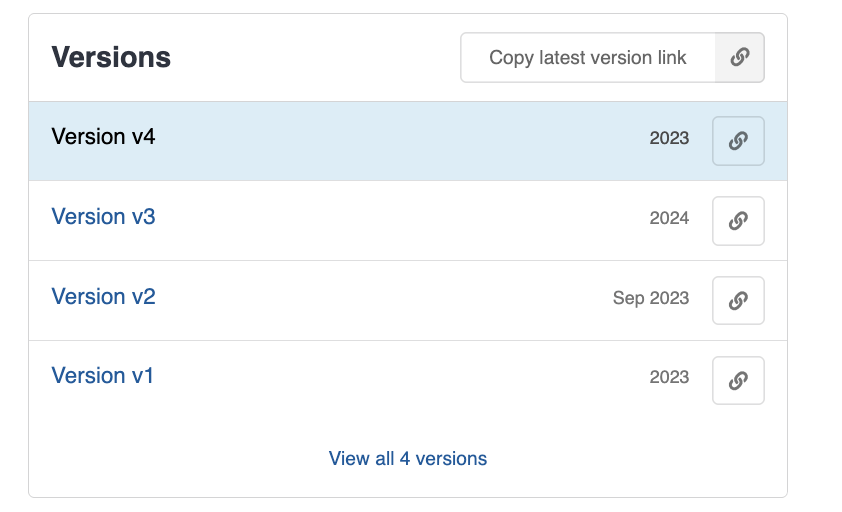
CDS keeps a version history, so all previous versions remain accessible.
All versions of a record are linked together, allowing you to navigate between older and newer versions.
Tip
To learn more about how DOIs work with record versions, see the DOI versioning FAQ.
Delete
You cannot delete a published record. Deletion is allowed according to the Content Policy.
Please open a ticket if you wish to delete a published record.