Publish GitLab and GitHub repositories
You can sync your GitLab and GitHub repositories directly to CDS. Each new release will create a record on CDS with a ZIP archive of the repository's contents and automatically extracted metadata.
Connect your account
To be able to sync your repositories, you need to connect your GitLab and/or GitHub account.
-
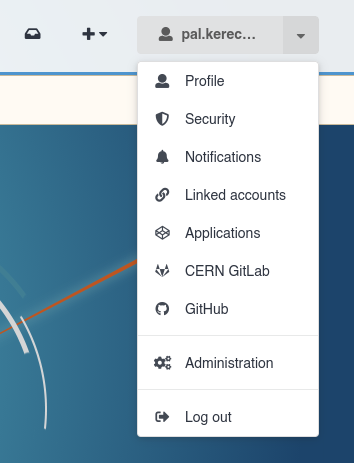
From any page on CDS, click on the user dropdown, and click either CERN GitLab or GitHub. The option you select depends on where your repository is located.
- Select CERN GitLab if your repository is on gitlab.cern.ch.
- Select GitHub if your repository is on github.com.
-
Click Connect and follow the steps to log in with the service.
-
Your repositories will show up in a list.
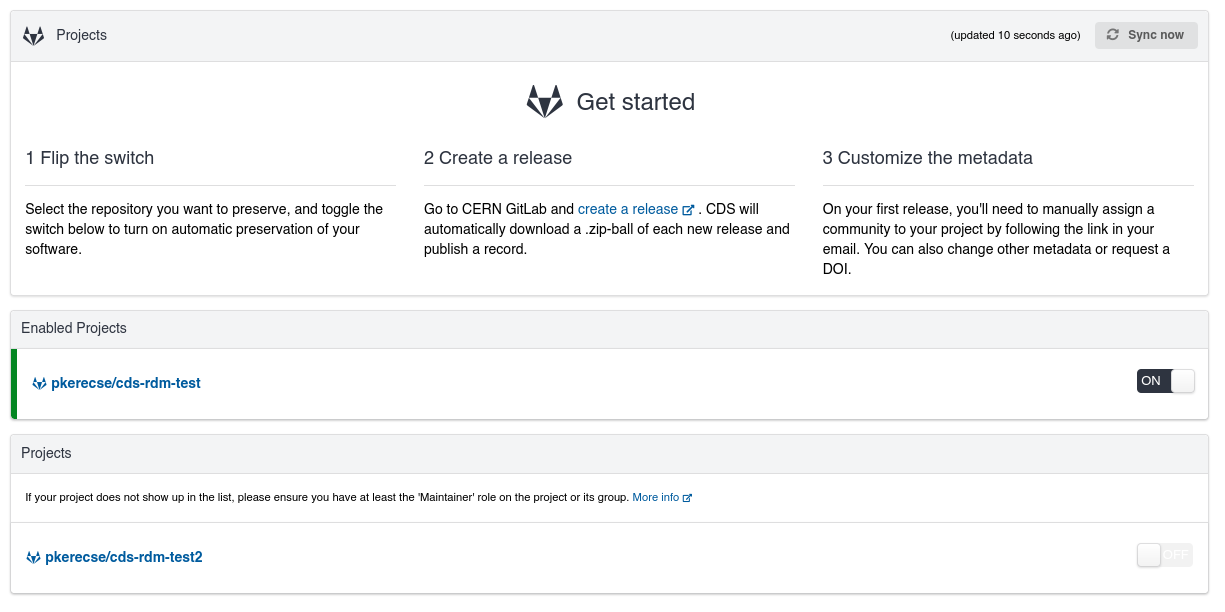
Supported repository services
We only support CERN's internal GitLab instance and public GitHub. We do not currently support any other repository services. If your repository is hosted elsewhere, you can create and publish records for its releases manually: see how to upload a record.
Supported repositories
Not all repositories are supported. Unsupported repositories will not appear in the list.
Only repositories meeting the following criteria are visible. If your repository does not appear in the list, please check that it meets all of these. If it is still not shown, please contact us.
-
Sufficient access permissions
-
In general, you must be able to view the repository and manage its webhook.
-
On GitLab, this means you need either the Maintainer or Owner role on the project or its group. See GitLab's project permissions documentation for more information.
-
On GitHub, this usually means you need at least the Admin role on the repository. See GitHub's roles documentation for more information.
-
-
Public visibility: The repository must be set to "public". "Internal" and "private" repositories are not supported.
-
Has a file tree: Uninitialized repositories that don't contain files will not be visible.
- On GitLab, if the "Repository" feature is disabled on the project, it will not be visible.
Enable a repository
When a repository is enabled, CDS will start listening for releases and automatically create a record when a new one is received. By default, none of your repositories are enabled, so no records will be created.
- Find the repository in the list. If you cannot find it, please refer to the "Repository visibility" section above.
- Click on the toggle switch.
-
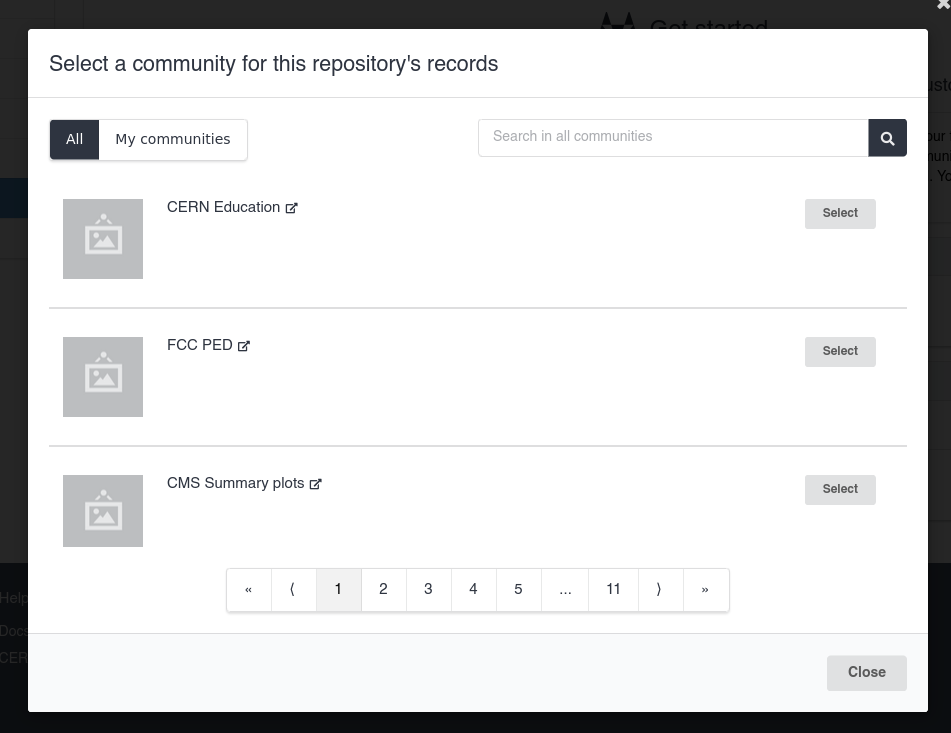
Select the community that records made for the repository's releases should be published to. All records on CDS must be published to a community. The record will be subject to the community's review policy as normal.
-
The repository is enabled! New releases from this point will result in the creation of a record on CDS.
View a repository's releases
Whenever you create a new release for an enabled repository, CDS will receive it and attempt to publish a record from it.
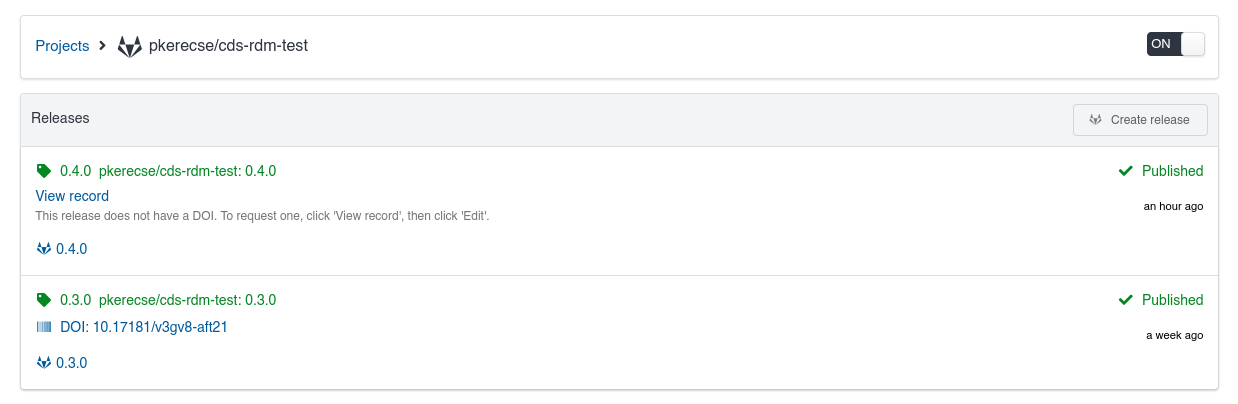
To view the status of a release and the record created from it, click on the repository's name in the list.
Release statuses
The status of each release is shown. The possible statuses are as follows:
-
Received/Processing: CDS has received the release from GitHub/GitLab and is processing it. This normally takes a few seconds, but can sometimes take longer for very large repositories. If a repository is stuck in this state for a longer time, please contact the CDS team via ServiceNow with the full name of your repository.
-
Failed: There was a problem creating a record from the release. Usually, this means some part of the repository contained unexpected data. Click on the release and click on the "Errors" tab to see more information.
- In most cases, you will need to modify the repository, and then create a new release.
- If an "Edit record" button is visible, you can instead edit the draft record to correct the errors, and then publish it manually.
-
Pending review: The record was successfully created as a draft and is pending review by the community it was submitted to. Once it is accepted, it will be published immediately. No further action is required from you.
-
Published: The record has been published.
Create a DOI
By default, records published from repository releases are not assigned a DOI. If a release's published record does not have a DOI, you can create one:
- Click on the View record button for the relevant release.
- Click on the Edit button.
- Follow the steps to either obtain a new DOI or specify an existing one.
- Click on the Publish button to save your changes.
If a release's record has a DOI, this is shown in the list of releases.
Disable a repository
Disabling a repository will stop new releases from being published as record on CDS.
Existing records created from repository releases
Disabling a repository will not affect existing records created from its releases. Deleting published records is usually not possible on CDS. Please see the deletion policy for more details.
- Find the repository in the list. It will be shown above other, non-enabled repositories, in a separate section titled "Enabled Projects" or "Enabled Repositories".
- Click on the toggle switch.
- The repository is disabled. New releases will no longer result in the creation of a record on CDS.